How to Login on Metis cluster
The Metis NIU cluster is accessible via the SSH protocol. Linux and MAC systems do have or allow an easy installation of command-line SSH clients. On Windows systems, the SSH client is available from the Windows PowerShell terminal.
NIU specific:
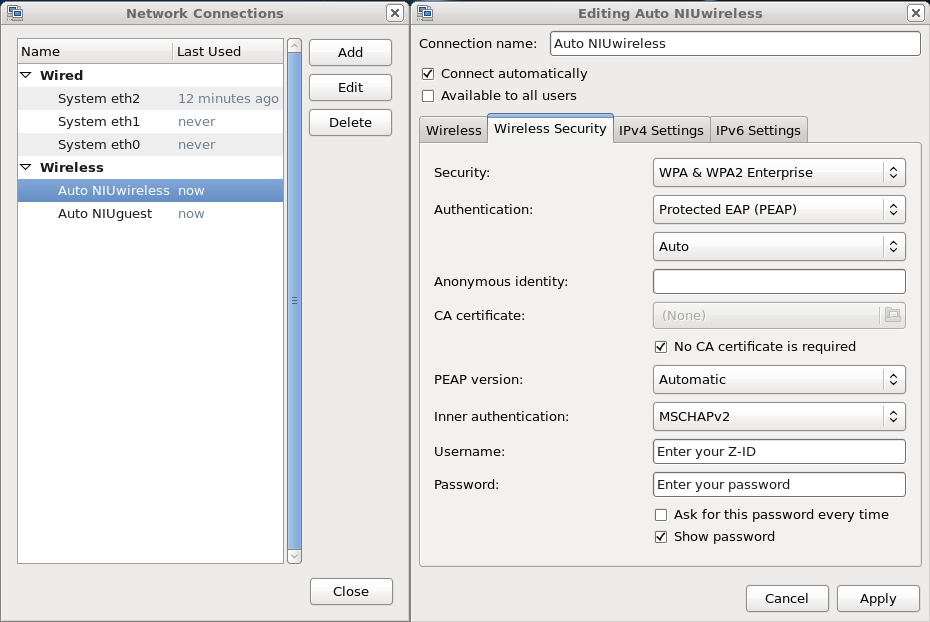
Only protected NIUwireless network (ZID/password) or wired desktops can be used for connections. Cluster is not accessible from the public wireless "NIUguest" network. Connection instructions:
Cluster access from Linux or MAC
- open a terminal program (xterm, console, etc.)
- follow the instructions from the welcome message
You'll start by opening the command line terminal and entering in
- ssh -Y yourUserID@metis.niu.edu
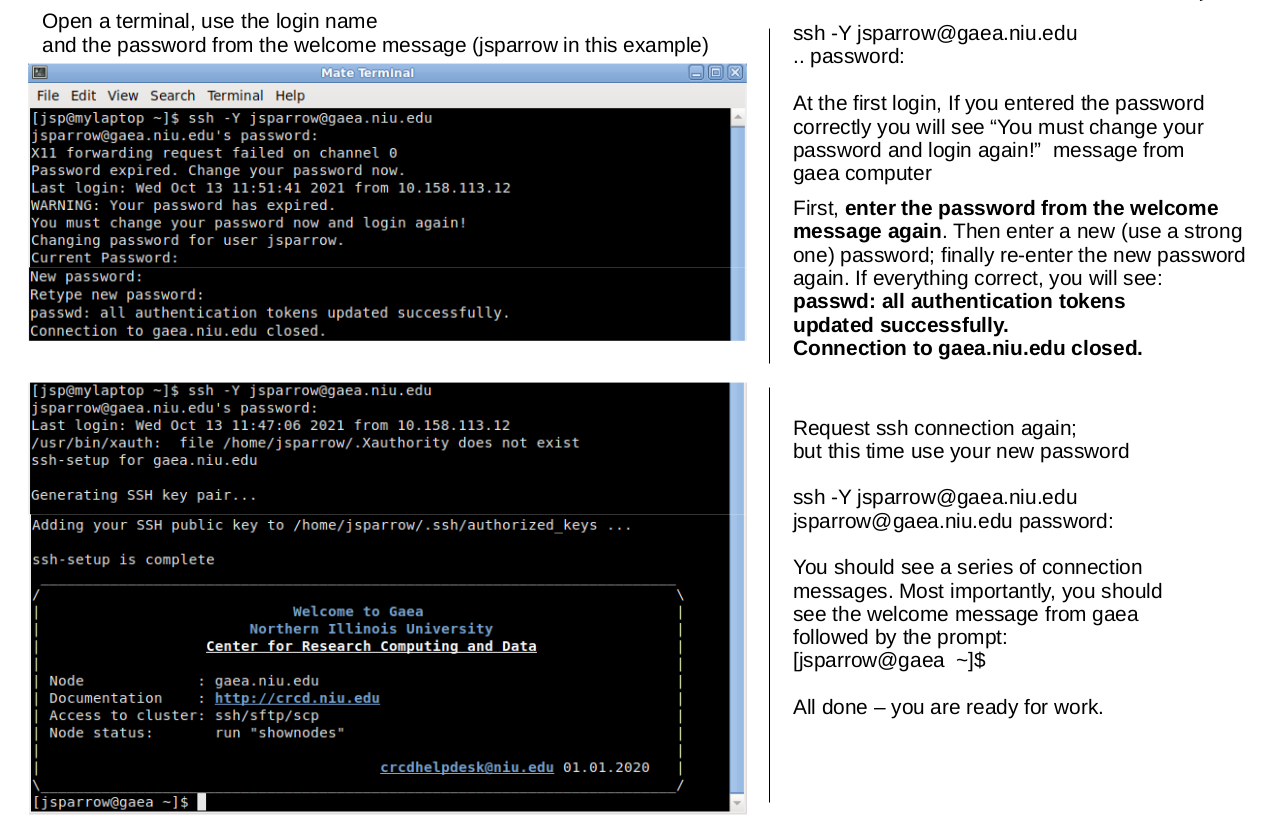
where you will replace "yourUserID" with the user ID provided for you. You'll then be asked to provide your password. Note: While typing in your password, you won't see bullet points appear you might see elsewhere when entering passwords and instead see nothing change at all. It is capturing your keyboard input, though!
For the very first login, use the temporary password from the welcome message. When connected, the system will require you to change the temporary password as described below. The new password should be a password of your choosing with a minimum length of 8 symbols. We recommend using a mix of lowercase (a-z) and uppercase (A-Z) letters, base digits (0-9) and special characters (~!@#$%^&*_-+=`|\(){}[]:;"'<>,.?/0). Do not use trivial combinations; do not include your user ID or any part of your name. If you'd like help choosing a new password, a variety of password generator apps and online password generators are available online.
Cluster access from Windows
- open the Windows PowerShell terminal and follow the instructions above
Connecting to Metis
Once you have successfully logged in, you should see a series of connection messages, key fingerprints, and "randomart", all of which can be ignored. Most importantly, you should see...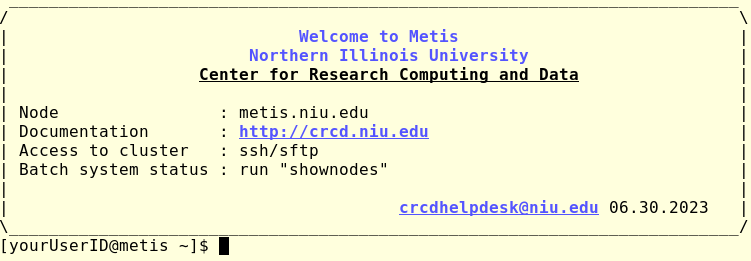
Where the string of character(s) found just before the closing-square bracket is your current directory. When you first log in, this should be the tilda (~) character representing your home directory. Congratulations! You're ready to start creating jobs to be submitted and run!
Passwordless login via SSH public key
We allow and recommend to setup SSH public key authentication on all trusted computers to access metis system. The SSH public key machinery provides more robust security and protects against forgotten passwords. Linux, Mac, and Powershell users can follow the instructions below:
- open a command line terminal (xterm, konsole, Windows PowerShell, etc.)
- Generate SSH access keys (files id_rsa and id_rsa.pub will be stored under the .ssh subfolder)
[localPrompt] ssh-keygen -t rsa - copy the generated ssh public key to metis (replace 'username' below with your metis login name); enter the metis password when prompted
[localPrompt] scp .ssh/id_rsa.pub username@metis.niu.edu:~/id_rsa.pub.pc1 - login to metis (enter the metis password when prompted
[localPrompt] ssh username@metis.niu.edu - add the id_rsa.pub.pc1 public key to your public keys wallet
[yourUserID@metis]$ cat id_rsa.pub.pc1 >> .ssh/authorized_keys - exit from metis and connect again
[localPrompt] ssh username@metis.niu.edu - If done correctly, the system allows you to log in without entering the password
A detailed tutorial can be found at https://kb.iu.edu/d/aews.
Running graphical applications (X-windows applications)
Graphical Linux applications are called X-applications (xterm, XEmacs, nedit, etc.) because they use the X Windows protocol to present their windows. Correspondingly, they need software (called X-server) to run on a user's desktop. Linux users connected from their graphical environment already have X-server on their system and can run X-applications installed on the cluster immediately after login.
Access X-applications from Mac OSDownload a free XQuarz server for macOS. For detailed installation instructions visit this page. Install and launch XQuartz, then
- open macOS terminal program
- run
ssh -Y loginName@metis.niu.edu
- download, install and launch a free Xming X-server
- open Windows PowerShell terminal, run
ssh -Y loginName@metis.niu.edu
Beginners quickstart
Those who have not worked in a Linux environment before may need to complete the following short tutorials.
A minimal Linux dictionary
- terminal - the window you are working in
- command line - the line in the terminal to enter a command, starts with the "prompt":
[userName@metis ~]$- login shell - a program that interprets commands ("bash" by default)
- shell environment - a set of variables known to the shell program. You can list the predefined variables with
[userName@metis ~]$ envThe variables are displayed in capital characters; their assigned values follow the "=" sign.
- data disks - devices to store data
- file - a collection of data, a digital document, stored on a storage device under a specific name
- directory or folder - a location for storing files on your data discs
- path - an address of a specific file or directory in the filesystem directory tree in form /dir1/subdir1/subdir1/myfile
- current working directory - the directory in which you currently working in. To display, doecho $PWD
- home directory - the default directory, the directory in which you placed immediately after login. To display, doecho $HOME or echo ~/
- shell start-up files : ~/.bashrc and ~/.bash_profile. Special files in your home directory the login shell program checks at the beginning of the session. In these files, you can define custom shell variables and "aliases" (shortcuts to sequences of commands).
- shell script - a file with a set of commands which can be interpreted by a shell program or by a specific interpreter
- application program - a file containing a compiled (encoded) sequence of instructions the computer can run. For details, see How programs are executed?
- To learn more about the bash and environment, google "bash tutorial."
- To use available software modules, read this tutorial
A minimal command set
- To get fast help about a specific command, do "man command" or "info command" or "command --help". For example, try
[userName@metis ~]$ man ls[userName@metis ~]$ info ls[userName@metis ~]$ ls --help - To list the content of a current folder: ls; ls -l; ls -la; ls -ltrh - provide a different level of listing details - correspondingly:
- ls - the single column listing
- ls -l - the detailed (long) listing
- ls -la - the detailed listing showing hidden files and folders (names begin with "." )
- ls -ltrh - the detailed listing showing files reversely ordered by the creation time with their sizes in "human-friendly" format (kilobytes, megabytes, gigabytes, terabytes).
- To create a new directory myNewDir in the /somePath/ folder
- mkdir /somePath/myNewDir
- if /somePath/ is not given the myNewDir will be created in the current working directory
- To enter directory /somePath/myNewDir:
- cd /somePath/myNewDir
- if /somePath/ is not given the destination directory will be the user's home directory
Editing files
To create an empty file with the name, for example, newfile.txt do
[userName@metis ~]$ touch newfile.txt
To edit files in a terminal window, we suggest using emacs or vim editor programs. Examples: [userName@metis ~]$ vim newfile.txt
or [userName@metis ~]$ emacs newfile.txt
Warning - both editors have a very specific shortcut setting, google for corresponding tutorials and documentation. For less complex edits, the "nano" editor can be used.